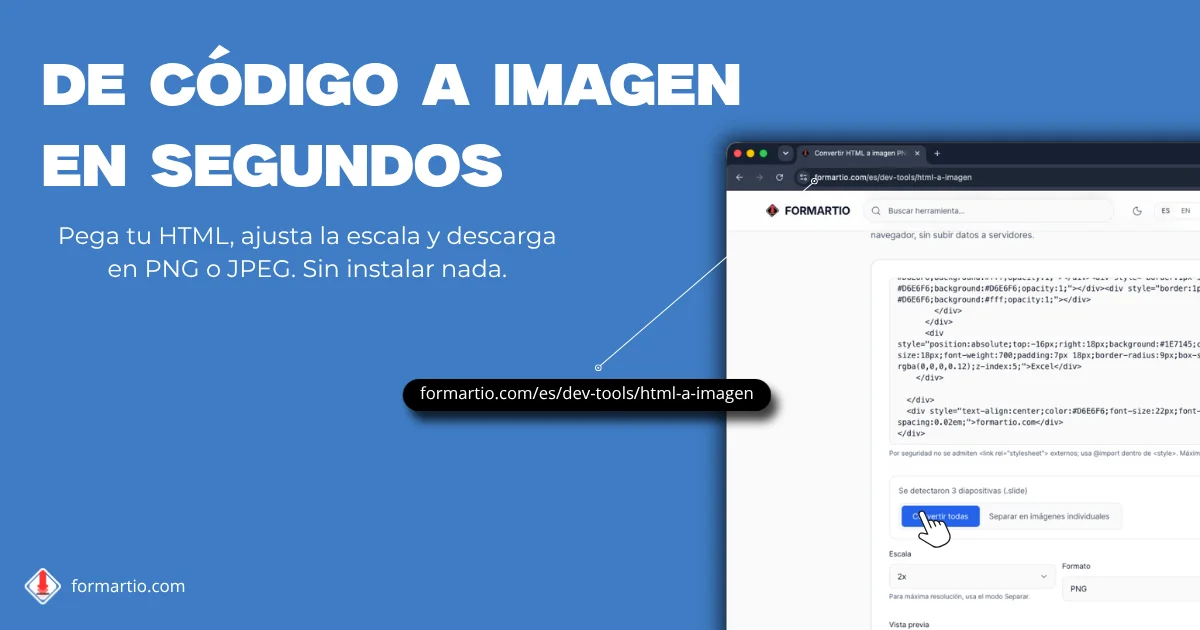
You have an Instagram banner laid out in HTML and CSS, with exact fonts and margins. You open it in the browser, take a screenshot, and the crop eats an edge, the shadow looks pixelated, and the text does not match the real design. Or you try an online service that converts HTML to image but slaps a watermark on until you pay.
Converting html to image with real rendering avoids those shortcuts: the browser paints the code as-is and exports PNG or JPEG at the resolution you choose, up to 4K. FORMARTIO runs locally, with no upload of your HTML to external servers and no cap on conversions.
How to convert HTML to an image step by step
- Paste your HTML code directly into the editor, or upload an .html/.htm file by dragging it into the upload area.
- Choose the output format (PNG or JPEG) and adjust the scale based on the resolution you need, up to 4K.
- Click «Convert to image» and download the result, or copy it straight to your clipboard to paste it anywhere.
Slides mode and ZIP download
If your HTML defines several slides with the .slide class — story carousels, presentation decks or banner variations — the tool detects them automatically. No need to capture one by one: enable «Separate into individual images», convert all, and download the ZIP with each PNG or JPEG ready to go.
For very wide or tall designs, 4x scale may hit the browser canvas limit (~4096px). Use 2x scale or Separate mode instead: each slide renders on its own so you can get maximum sharpness without forcing one giant image.
Include styles inside <style> and @import for fonts like Google Fonts. For security, external <link rel="stylesheet"> tags are not supported; HTML is capped at 500 KB to keep rendering snappy in the tab.
What is converting HTML to an image for?
Converting HTML to an image is the fastest way to turn a component, template or mockup into a ready-to-share PNG or JPEG, without relying on manual screenshots that crop poorly or lose sharpness.
Developers and designers use this tool to generate social media images, banners or previews from HTML and CSS code, keeping exact control over the final design at high resolution.
Converting HTML to PNG in the browser means your code never gets uploaded to an external server: all rendering happens locally, making it ideal for templates with client data or designs not yet published.
Frequently asked questions
Can I convert HTML to image for free with no limits?
Yes. FORMARTIO converts HTML to PNG or JPEG for free, with no sign-up and no watermark, directly in your browser. There's no limit on conversions.
What is the maximum resolution supported?
You can scale the image up to 4K. Keep in mind that 4x scale may not work with very large designs due to the browser's canvas limit (~4096px); in that case use 2x scale or the «Separate into individual images» mode.
Can I use my own CSS in the HTML?
Yes. You can include styles inside <style> tags and use @import for external fonts like Google Fonts. For security reasons, external <link rel="stylesheet"> tags are not supported.
Can I convert multiple slides at once?
Yes. If your HTML contains several elements marked with the .slide class, the tool automatically detects them, converts each one separately, and lets you download all the images together in a ZIP file.
When the design is already in code and screenshots will not give you a professional result, do not pay for watermarked conversions. Convert your HTML to image on FORMARTIO, pick PNG or JPEG at high resolution, and download or copy instantly.