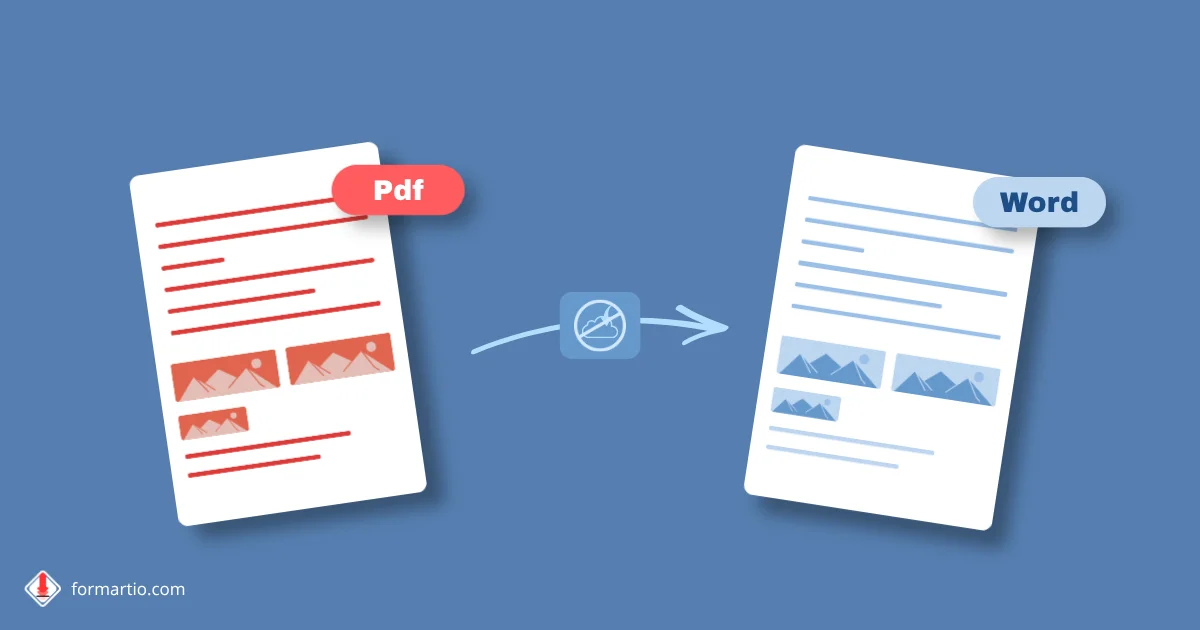
Someone sends you a contract as a PDF and asks for edits back in Word. You open the file, try copy-paste, and everything falls apart: tables out of place, weird bullets, page breaks that make no sense. If you need to convert PDF to Word without paying for licenses or installing heavy software, there is a smarter path than fighting the clipboard.
The key is using a tool that understands document structure, not just loose text. And if privacy matters, you want the file to stay off unknown servers. On FORMARTIO the process runs in your browser: upload the PDF, convert it, and download the result with no sign-up.
What to expect when you convert PDF to Word (and what not to)
A PDF is like a snapshot of the document: layout locked in place. Word is editable. When you move from one to the other, the converter rebuilds paragraphs, tables, and headings as well as it can. Scanned PDFs — photos of pages — come out worse than PDFs exported from Word or Google Docs.
If the original has columns, embedded charts, or unusual fonts, you may need to tweak margins by hand. That is normal. What you should get back reliably is body text, simple lists, and basic tables from invoices or reports.
Step by step: convert PDF to Word free
- Open FORMARTIO and find the PDF to Word option in the catalog.
- Drag your PDF into the upload area or click to pick it from a folder. Large files may take a few seconds; nothing goes to the cloud — it is read locally.
- Hit convert and wait until it finishes. On long documents you will see progress on screen; do not close the tab halfway through.
- Download the resulting .docx and open it in Word, LibreOffice, or Google Docs. Check the first and last pages especially — that is where loose details often show up.
- Save a copy under another name before you edit, in case you need to go back to the converted original.
Tips that make a real difference
If the PDF is password-protected, remove the lock first with a reader that lets you print to PDF without protection, or ask the sender for an editable version. Copy-protected PDFs usually give poor results.
For resumes and cover letters, a quick pass is often enough. For contracts with legal numbering, check that sections did not change order. A practical trick: search for a unique word in the document (a proper name, for example) in the converted Word file and confirm it appears in the same context as in the PDF.
Multiple files? Convert one at a time. Merging different conversions by hand almost always takes longer than doing it right from the start.
When converting makes sense — and when it does not
It makes sense when you need to change text, update dates, or reuse paragraphs in another template. Do not use it to "unlock" a PDF you should not edit: respect the author's rights and your company's policies.
If you only need to sign or fill in fields, a PDF editor is sometimes faster than going through Word. But when the goal is a deep review with track changes, convert PDF to Word is still the most comfortable route.
Contract with pricing tables
After you convert PDF to Word, check merged cells in the rate table. A column shift can change figures without being obvious at a glance. Compare totals with a calculator before sending the document back to the client.
Turn on track changes in Word as soon as you start editing. The other party sees what you changed, and the back-and-forth email thread drops from ten messages to two.
Next time a PDF lands in your inbox and the subject line says "attached for review," do not lose half an hour on copy-paste. Convert PDF to Word free on FORMARTIO, review the result in two minutes, and get to editing what actually matters.