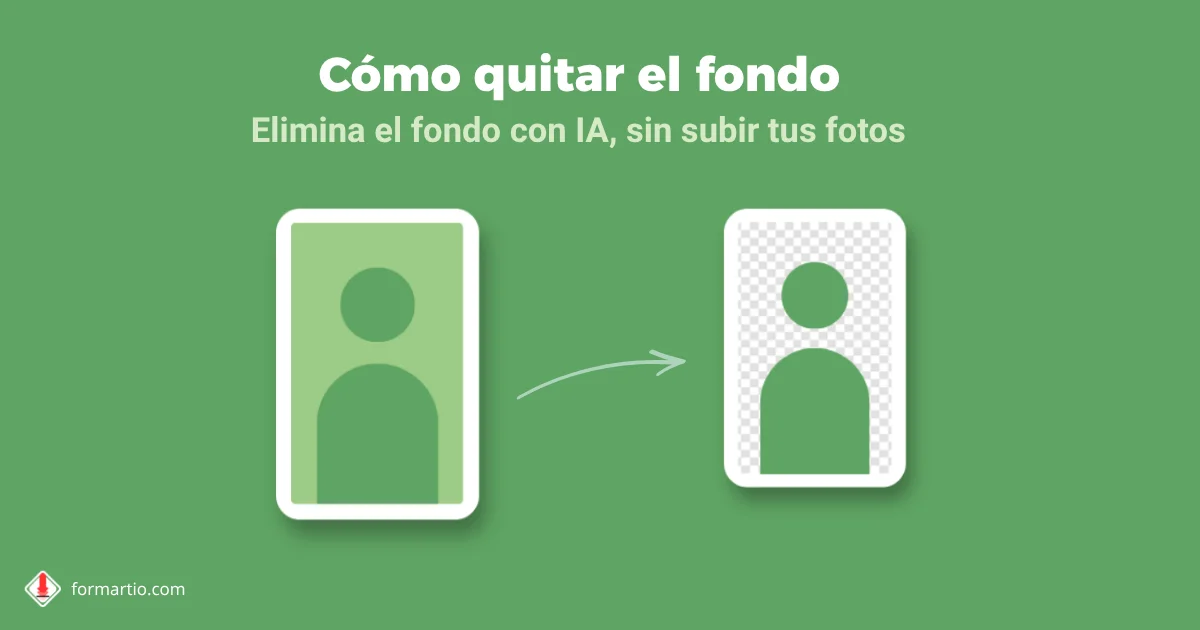
You have a product shot on the kitchen table — messy background, charger cable in frame — and the Meta campaign launches tomorrow. No budget for a studio session. You need to remove image background and leave the object floating on white or transparent for the banner.
Cutting by hand with the lasso takes twenty minutes and hair or glass edges look rough. AI tools detect subject and background in seconds. FORMARTIO does it in the browser, with no Photoshop or monthly subscription.
Which photos work best
Sharp subject with clear contrast against the background: bottle on a dark tablecloth, portrait against a plain wall. Worse: blonde hair on a white wall, transparent glass, or shadows blended into the floor.
Removing image background from a high-resolution PNG gives more room to fix edges afterward. If the original photo is heavily compressed, contours come out jagged even when the AI gets it right.
Step by step to remove the background
- Open Remove Background on FORMARTIO.
- Upload the photo as JPG or PNG. Avoid already miniaturized screenshots.
- Wait for automatic processing and review the outline in the preview.
- Zoom critical edges — hair, lace, glass — and fix by hand if the tool allows it.
- Download as PNG with transparency and place it on the real background color of your design.
After background removal: mandatory review
Temporarily put a loud color — magenta or lime green — behind the PNG. White or gray halos you did not see on white jump out immediately.
Shadows: sometimes a soft shadow under the product works better than floating in empty space. Other times the AI eats the useful shadow; duplicate the layer and paint shadow by hand in Canva or Figma.
Typical uses for removing image background
Ecommerce catalogs, WhatsApp stickers, professional profile photos, poorly cropped scanned logos, and story compositions. In all of them, a transparent PNG saves hours versus manual erasing.
Scanned documents: background removal does not replace a clean scan, but it can lighten gray margins before converting to PDF.
If the result fails on embroidery or metal mesh, try another photo with more side light that separates volume from background. AI does not invent contrast the camera did not capture.
Mistakes that ruin the cutout
Exporting to JPG after background removal: you lose transparency and the background turns flat white. Always PNG or WebP with alpha for graphics.
Using the same heavily cropped photo for a large banner: scale it and jagged edges show. Start from a larger image than you think you need.
Very fine hair against a light background: sometimes it is worth reshooting with a temporary solid backdrop — green or gray cardstock — before removing image background with AI.
Integrate the PNG into your design
In Figma or Canva, place the PNG on the real brand color of the banner, not default white. Halos look different depending on the campaign's final background.
For marketplaces that require pure white #FFFFFF, export a final JPG on white after the transparent PNG; many do not accept transparency on the product listing.
When the deadline is tight and the photo background will not cooperate, do not lose the afternoon on the magnetic lasso. Remove your image background on FORMARTIO, check halos on a strong color, and export a PNG ready for design.